How to Set Up Automated UGC Ad Campaigns for Social Media
Automate your UGC ad creation and posting with AutoFeed.ai campaigns

What Are UGC Campaigns?
UGC Campaigns are automated systems that generate and post UGC (User-Generated Content) ad videos on a schedule. Unlike auto-posting series which focus on faceless content, campaigns are specifically designed for UGC ads - perfect for affiliate marketing, product promotion, and monetization. Campaigns allow you to scale your UGC ad production and posting, making it possible to run multiple product promotions simultaneously without daily manual work.
Why UGC Campaigns Are Powerful
UGC campaigns offer unique advantages for creators and marketers:
- Monetization Focus: Designed specifically for promoting products and earning revenue
- Multiple Products: Run campaigns for different products simultaneously
- Consistent Promotion: Keep products in front of your audience regularly
- Testing: Easily test different hooks, angles, and products to find what converts
- Scalability: Automate your entire affiliate marketing or product promotion workflow
Step 1: Navigate to Auto-Posting Campaigns
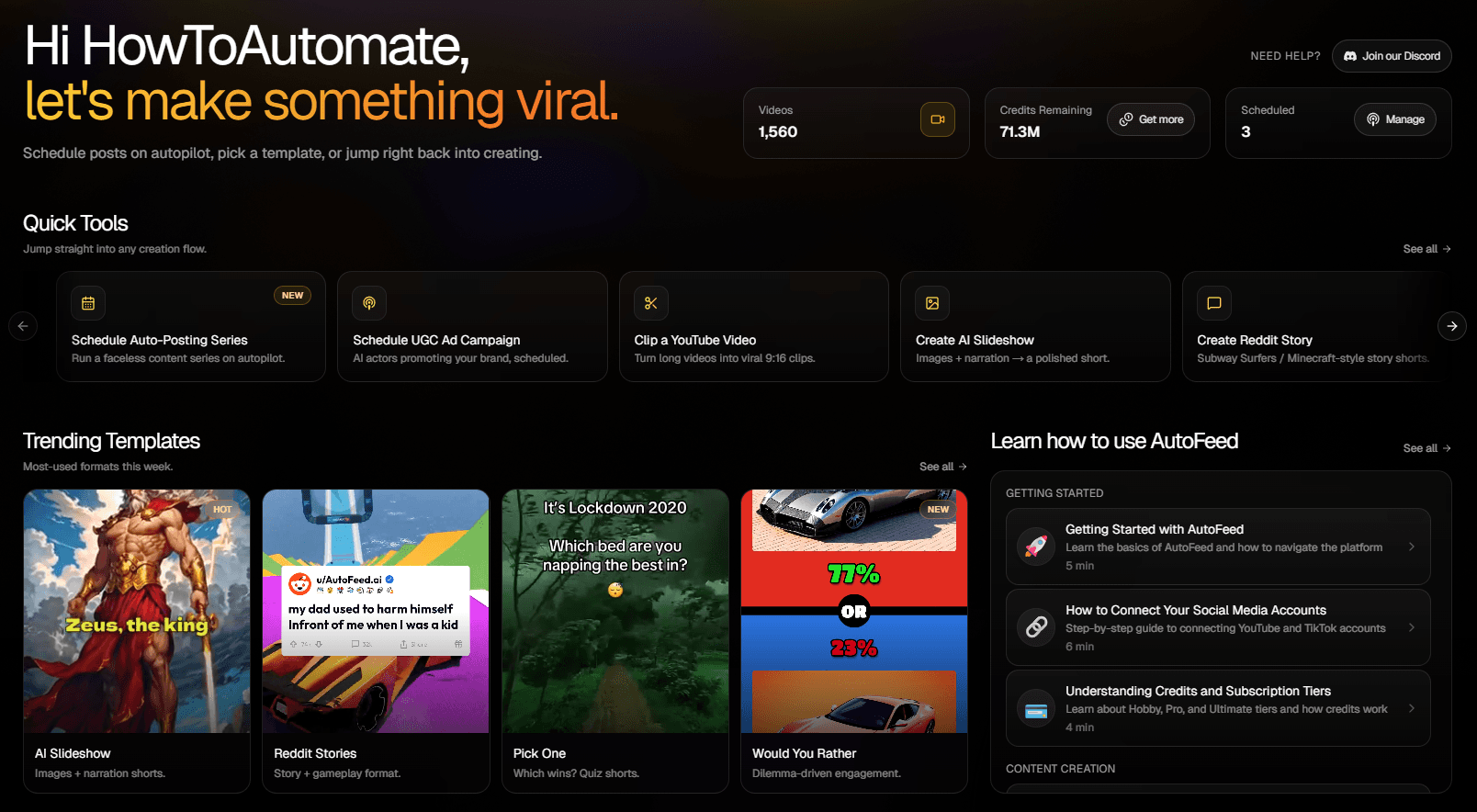
Go to the Auto-Posting page in your dashboard. You'll see tabs for "Series" and "Campaigns." Click on the Campaigns tab, then click the "Add Campaign" button. A dialog will open with tabs at the top: Social Accounts, Campaign Name, Hooks Avatars & Demos, Background Music, and Posting Schedule.
Step 2: Select Social Accounts and Configure Settings
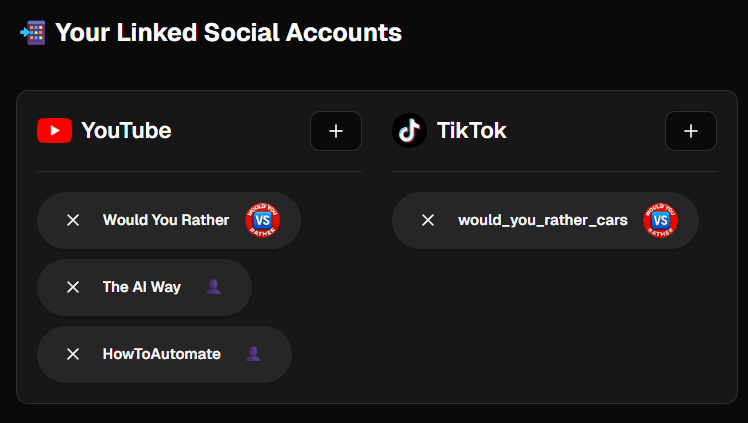
In the Social Accounts tab, select which accounts will receive your UGC ads. You can choose multiple YouTube channels, multiple TikTok accounts, or any combination of connected accounts. Click on account badges to select or deselect them.
You can also configure platform-specific settings:
- YouTube Settings: Set video visibility (Public, Unlisted, Private)
- TikTok Settings: Configure visibility, enable comments, and set disclosure options if your content promotes products or services
Important: You must select at least one social account to create a campaign. If you're promoting affiliate products on TikTok, make sure to configure the disclosure settings properly to comply with platform policies.
Step 3: Name Your Campaign
Navigate to the Campaign Name tab and enter a memorable name for your UGC campaign. Good campaign names are descriptive and specific, such as:
- "Skincare Beauty Product Demo #7"
- "Affiliate Campaign - Software Tool"
- "Product X Promotion - Q4"
Pro Tip: Use descriptive names that help you quickly identify what product or service the campaign promotes. This is especially useful when running multiple campaigns simultaneously.
Step 4: Configure UGC Content
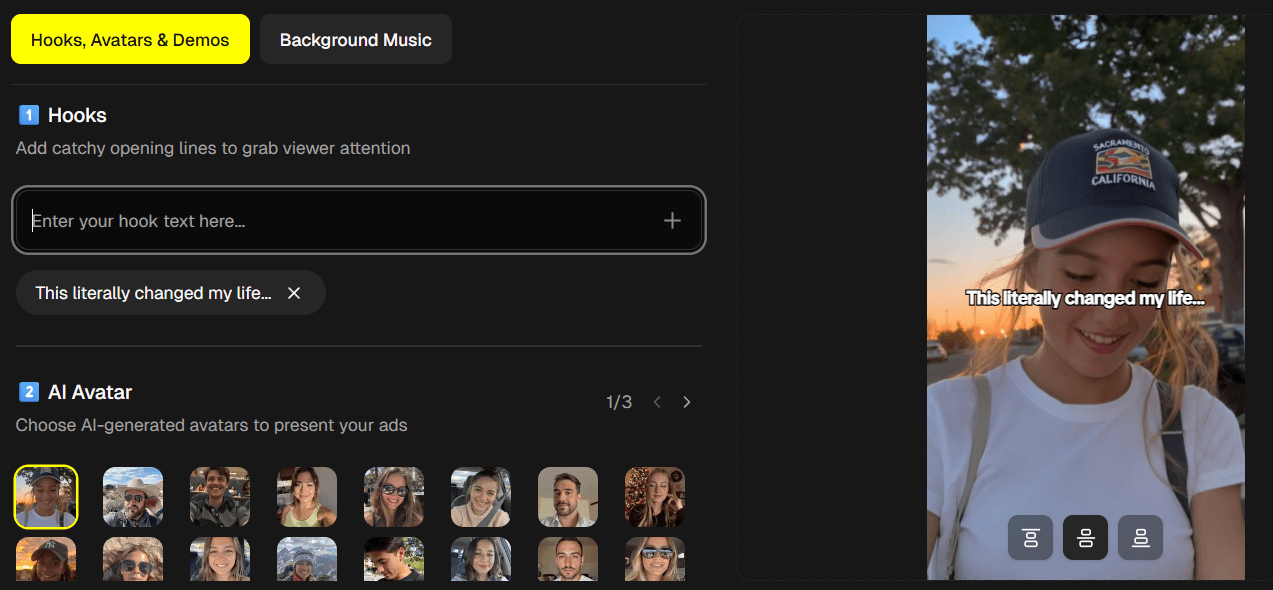
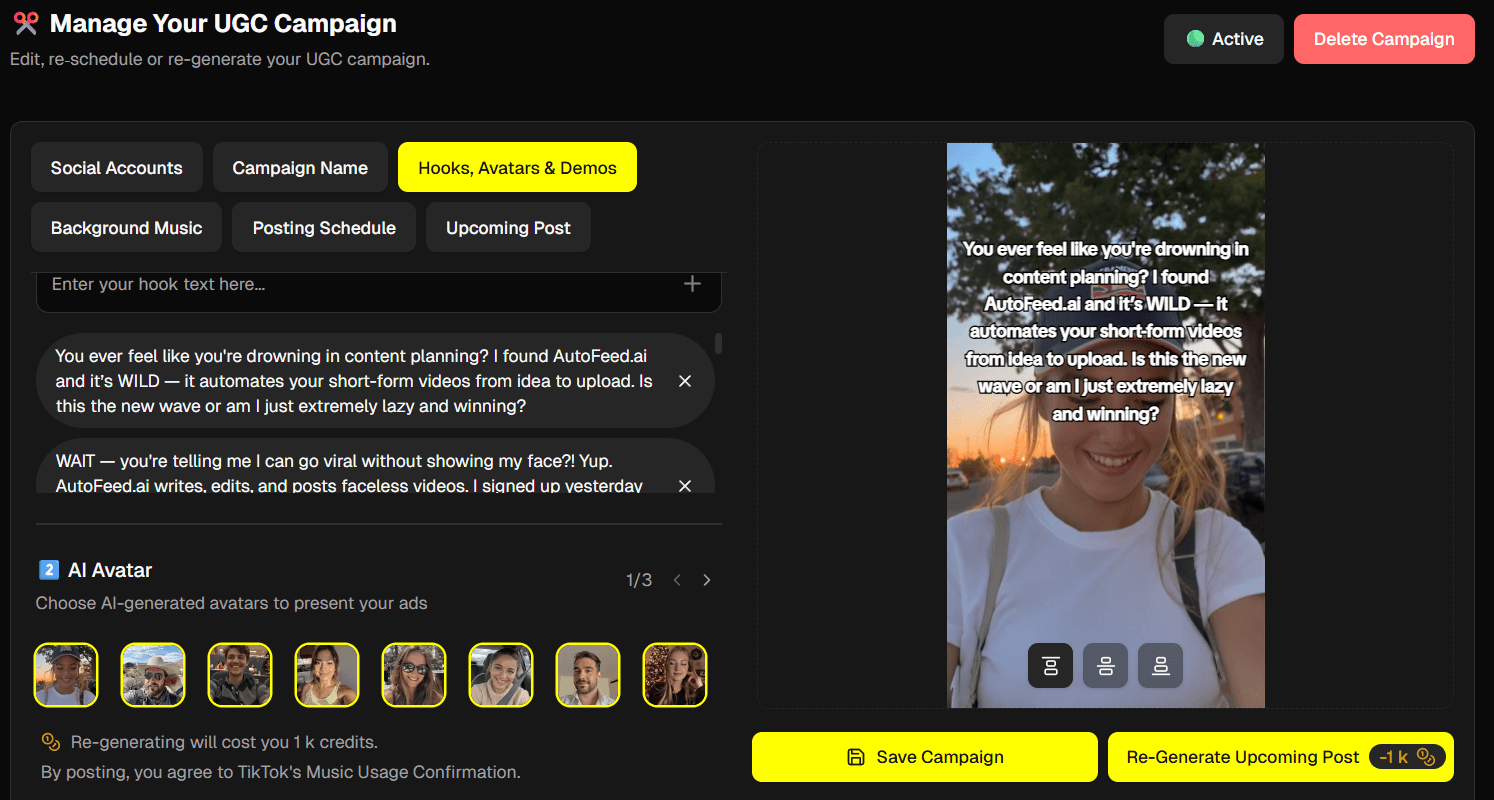
In the Hooks, Avatars & Demos tab, you'll configure the UGC ad content with three sections:
1. Hooks: Add multiple attention-grabbing opening lines. Type a hook in the input field and press Enter to add it. AutoFeed will use different ones for variety. Examples include "I tried this product and here's what happened..." or "This changed my life..."
2. AI Avatar: Select one or more AI-generated avatars that will represent your "user" in the ads. Browse through available avatars using the pagination controls and click on thumbnails to select them.
3. Demos: Upload or select demo videos showing your product in action. Click "Add Demo" to upload a new video, or select from previously uploaded demos.
Pro Tip: For campaigns, you can select multiple hooks, avatars, and demos. AutoFeed will create variety by mixing and matching these elements, keeping your content fresh while maintaining consistency.
Step 5: Select Background Music
Navigate to the Background Music tab to add background music to your UGC ads. Music is organized into four categories:
- Viral: Trending, energetic tracks
- Classics: Timeless tracks
- Moods: Music that sets different emotional tones
- Movies: Cinematic tracks
Click on any category tab to browse tracks. Use the play button to preview music before selecting. You can select multiple tracks for variety, or choose "No Sound" if you prefer no background music.
Pro Tip: Choose music that matches your product's vibe. Energetic music works for lifestyle products, while calm music suits wellness content. Multiple selections allow AutoFeed to vary the music across different ads.
Step 6: Set Your Posting Schedule
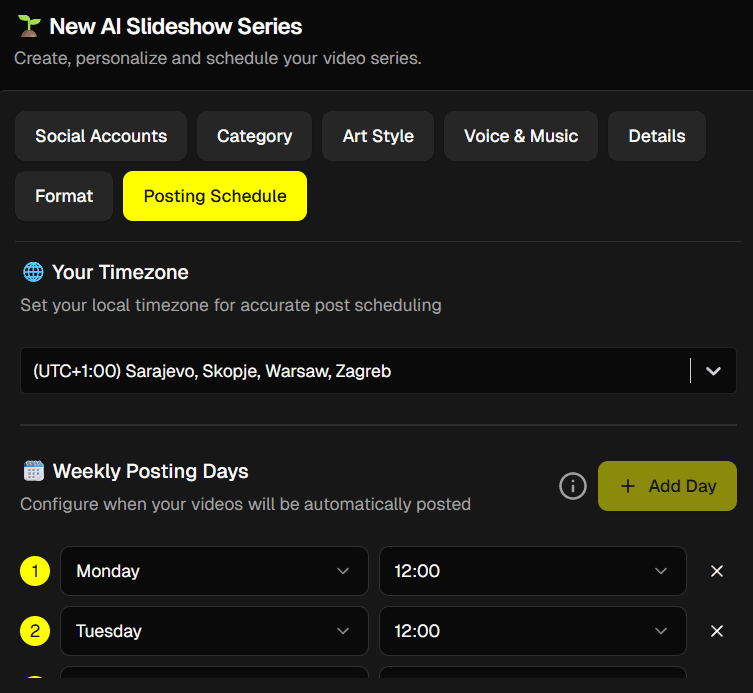
In the Posting Schedule tab, configure when you want UGC ads to be posted. Select your local timezone from the dropdown, then add posting times by clicking the "Add Posting Time" button. For each posting time, you can select days of the week and set specific times.
Posting frequency limits depend on your subscription tier:
- Hobby: Up to 3 posting times per week
- Pro: Up to 7 posting times per week (1x per day)
- Ultimate: Up to 14 posting times per week (2x per day)
Pro Tip: For affiliate products, posting 2-3 times per week is usually optimal - enough to stay top-of-mind without being too pushy. Use analytics to find when your audience is most active and schedule posts accordingly.
Step 7: Save and Activate Your Campaign
Review all settings in the preview panel, then click "Save Campaign." Once saved, your campaign will appear in your Campaigns list, start generating UGC ads according to your schedule, automatically post to your selected social accounts, and create variety by mixing different hooks, avatars, and demos.
You can manage your campaign anytime by clicking on it in the Campaigns tab to edit settings, view upcoming posts, or pause/resume the campaign.
Managing Multiple Campaigns
The real power of campaigns comes from running multiple simultaneously:
- Different Products: Promote multiple products without overwhelming your audience
- Different Angles: Test various hooks and messaging for the same product
- Diversification: If one product stops converting, others continue
- Analytics: Compare performance across campaigns to see what works best
Monetization Strategies
Here are proven strategies for monetizing your UGC campaigns:
Pro Tip: Promote products with affiliate links. Many creators earn $500-$5000+ per month from well-run campaigns.
Pro Tip: Use campaigns to promote your own products or services consistently.
Pro Tip: Work with brands to create UGC campaigns for their products.
Pro Tip: Run multiple campaigns with different hooks and angles to find what converts best, then double down on what works.
Start Automating Your UGC Ads Today
Ready to set up your first campaign? Sign up for AutoFeed.ai and start automating your UGC ad creation and posting. Scale your affiliate marketing, product promotion, and brand partnerships - all hands-free.
Latest from Blog
How to Turn Long YouTube Videos into Viral Clips with AI
Repurpose podcasts, interviews, and long-form videos into viral shorts in minutes

How to Create 'Pick One' Videos That Drive Massive Engagement
The forced-choice format that dominates For You pages on TikTok and Reels

Stop Wasting Your Long-Form Content: A Repurposing Playbook for Creators
Why every creator should build a repurposing pipeline - and how to do it with AI