How to Create AI UGC Ad Videos: A Step-by-Step Guide
Create high-converting AI UGC ad videos with AutoFeed.ai
What Are UGC Ad Videos?
UGC (User-Generated Content) Ad videos simulate authentic user reviews and testimonials. These videos feature AI-generated avatars that look like real people promoting products or services in a natural, conversational way. UGC ads are incredibly effective because they feel more authentic than traditional advertisements. Brands love UGC ads because they convert better than traditional ads, and creators love them because they're easy to produce and can be highly profitable.
Why UGC Ads Are So Effective
UGC ads perform exceptionally well for several reasons:
- Authenticity: They feel like real user reviews, not advertisements
- Trust: Viewers trust peer recommendations more than brand messaging
- Conversion: UGC ads typically have 2-3x higher conversion rates than traditional ads
- Scalability: You can create multiple variations quickly
- Versatility: Works for any product or service niche
Step 1: Navigate to UGC Ad Creator
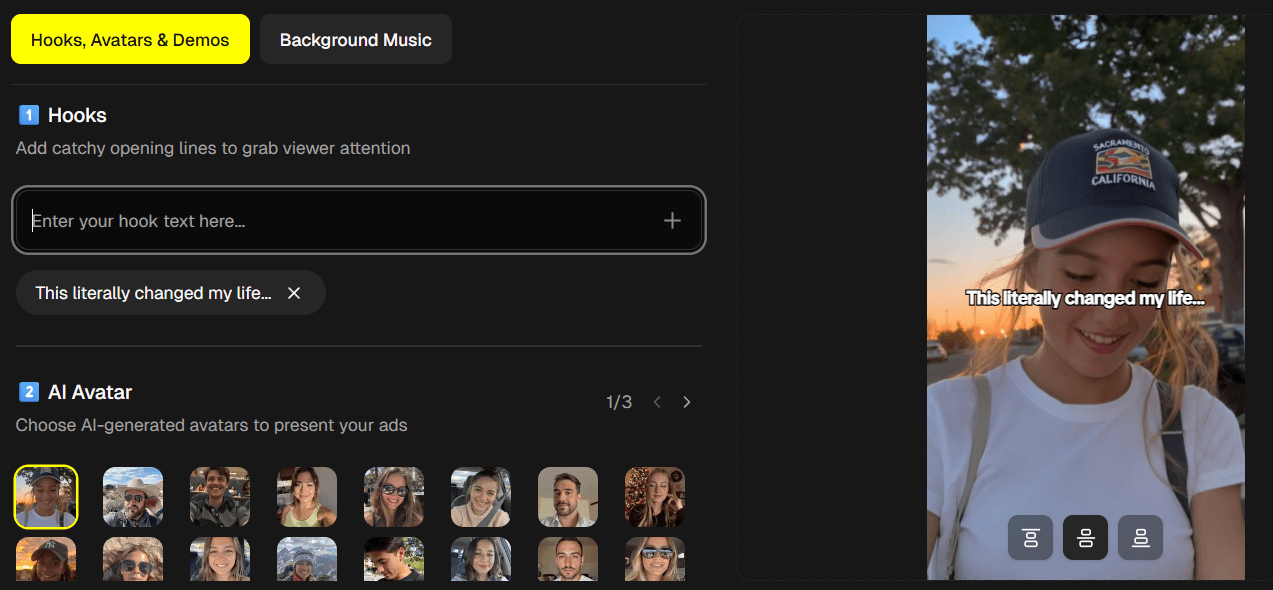
Go to Create → UGC Ad in your dashboard. You'll see the UGC creation interface with two tabs at the top: Hooks, Avatars & Demos and Background Music.
Step 2: Add Hooks
In the Hooks, Avatars & Demos tab, start by adding your hooks. Hooks are attention-grabbing opening lines that stop viewers from scrolling. They're crucial because the first 3 seconds determine if viewers keep watching.
Type your hook text in the input field and click the plus button (or press Enter) to add it. Popular hook examples include:
- "I tried this product and here's what happened..."
- "This changed my life..."
- "You need to see this..."
- "I can't believe this actually works..."
- "POV: You discover the best product ever..."
Pro Tip: Keep hooks short, punchy, and curiosity-driven. They should create an immediate question in the viewer's mind that makes them want to keep watching.
Step 3: Select AI Avatar
Next, choose an AI-generated avatar that will represent your "user" in the ad. You'll see a grid of avatar thumbnails with different ages, ethnicities, genders, styles, and settings.
Click on an avatar thumbnail to select it. Use the arrow buttons or page numbers to navigate through all available avatars.
Pro Tip: Choose an avatar that matches your target audience. If you're promoting a product for young adults, use a younger-looking avatar. For professional products, choose a more mature-looking avatar.
Step 4: Upload Demo Videos
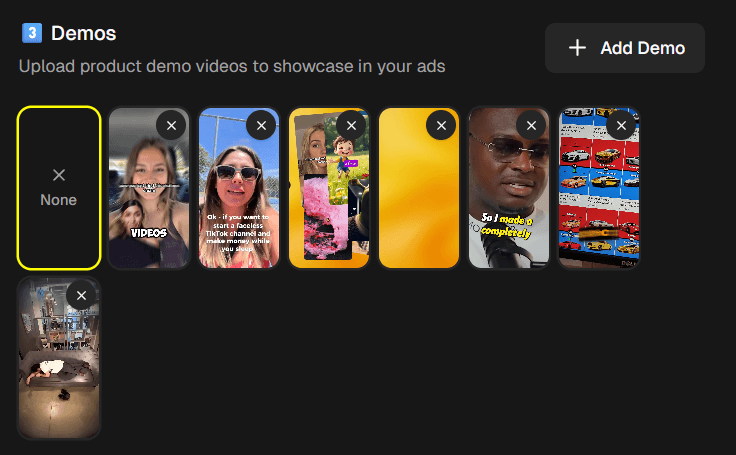
Upload or select demo videos that show your product or service in action. Demo videos add visual proof and make the ad more compelling. You have two options:
- Upload New Demo: Click the "Add Demo" button to upload a video file from your computer. Supported formats include MP4 and other common video formats.
- Select Existing Demo: If you've uploaded demos before, they'll appear as thumbnails. Click on any thumbnail to select it. You can also click "None" if you don't want to include a demo video.
Pro Tip: Use demo videos that clearly show your product's key features or benefits. Short, focused clips (10-30 seconds) work best. Make sure the video quality is good and the product is clearly visible.
Step 5: Select Background Music
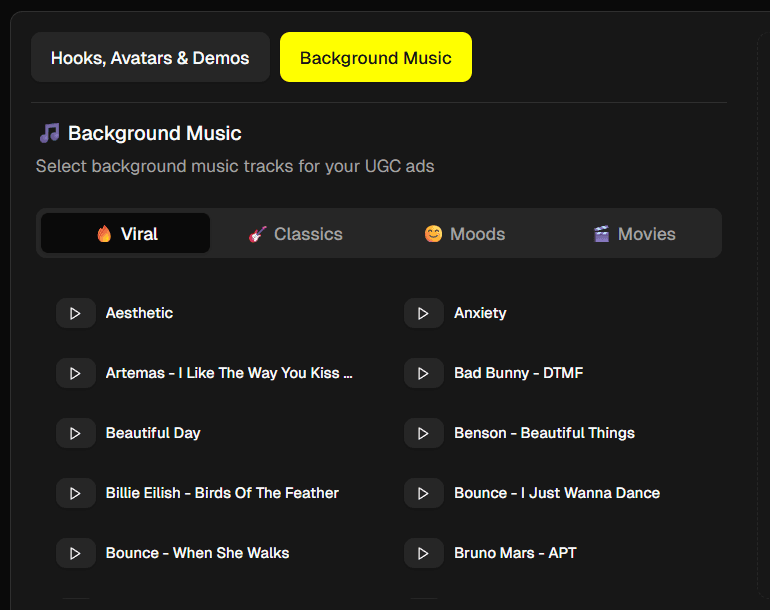
Navigate to the Background Music tab to add background music to your UGC ad. Music is organized into four categories:
- Viral: Trending, energetic tracks perfect for attention-grabbing ads
- Classics: Timeless tracks that work for a variety of products
- Moods: Music that sets different emotional tones
- Movies: Cinematic tracks for dramatic or professional ads
Click on any category tab to browse tracks. Each track has a play button to preview before selecting. You can also select "No Sound" if you prefer no background music.
Pro Tip: Choose music that matches your product's vibe. Energetic music works for lifestyle products, while calm music suits wellness or educational content. Make sure the music doesn't overpower the voiceover.
Step 6: Generate Your UGC Ad
Once you've configured all settings, review the credit cost displayed at the bottom of the page. When you're ready, click the "Generate UGC Ad" button. AutoFeed will combine your selected hook, avatar, and demo video with background music. Once complete, your UGC ad will appear in the "My Videos" section, ready for download or direct posting to your connected social media accounts.
Best Practices for UGC Ads
Follow these expert tips for high-converting UGC ads:
Pro Tip: The best UGC ads sound like real people talking, not sales pitches. Use conversational language and avoid overly promotional phrases.
Pro Tip: Focus on how the product solves a problem or improves the user's life, not just features.
Pro Tip: Include phrases like "I've been using this for 3 months" or "My friends all asked me about this" to add authenticity.
Pro Tip: End with a clear CTA like "Link in bio" or "Try it yourself" to drive conversions.
Monetizing UGC Ads
UGC ads can be highly profitable. Here's how creators monetize them:
- Affiliate Marketing: Promote products with affiliate links and earn commissions on sales
- Brand Partnerships: Work directly with brands to create UGC content
- Your Own Products: Use UGC ads to promote your own products or services
- Multiple Variations: Create several versions of the same ad to test what converts best
Many creators earn $500-$2000+ per month from UGC ads alone. The key is consistency and testing different products.
Ready to create UGC ads? Sign up for AutoFeed.ai and start creating high-converting UGC ad content in minutes.
Latest from Blog
How to Turn Long YouTube Videos into Viral Clips with AI
Repurpose podcasts, interviews, and long-form videos into viral shorts in minutes

How to Create 'Pick One' Videos That Drive Massive Engagement
The forced-choice format that dominates For You pages on TikTok and Reels

Stop Wasting Your Long-Form Content: A Repurposing Playbook for Creators
Why every creator should build a repurposing pipeline - and how to do it with AI