How to Automate Social Media Video Posting with AI
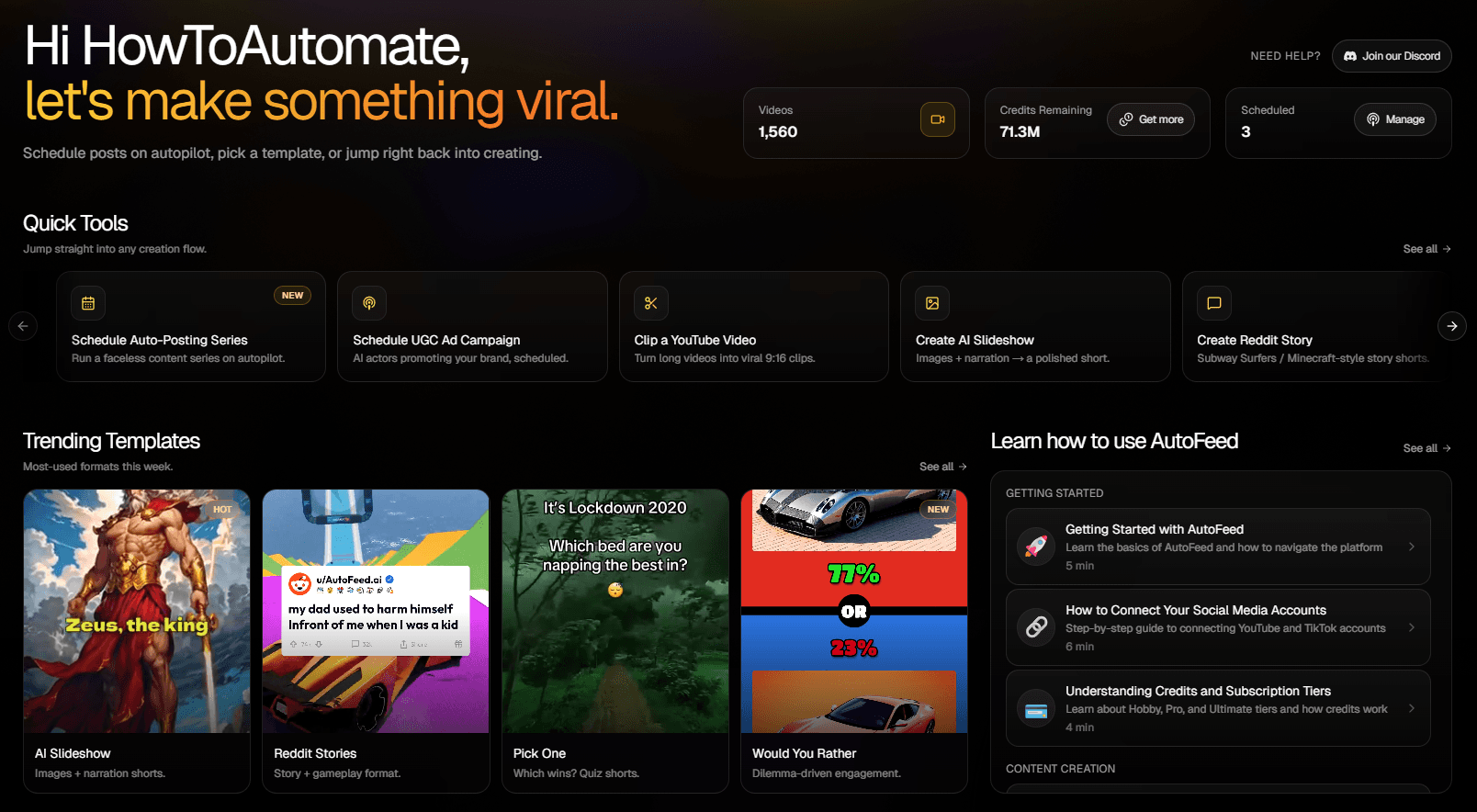
Set up automated video generation and posting with AutoFeed.ai auto-posting series
What Are Auto-Posting Series?
Auto-posting series automatically generate and post videos to your social media accounts on a schedule you set. Once configured, AutoFeed.ai handles everything - from content generation to posting - so you can focus on other aspects of your business while maintaining consistent content output. This is the key feature that allows you to scale your content creation without spending hours every day creating videos manually.
Why Auto-Posting Series Are Game-Changers
Auto-posting series offer incredible benefits for content creators:
- Time Savings: Set it once and let it run - no daily work needed
- Consistency: Never miss a posting day, even when you're busy
- Scalability: Run multiple series simultaneously for different content types
- Growth: Consistent posting is the #1 factor in social media growth
- Testing: Easily test different content types and see what performs best
Step 1: Navigate to Auto-Posting
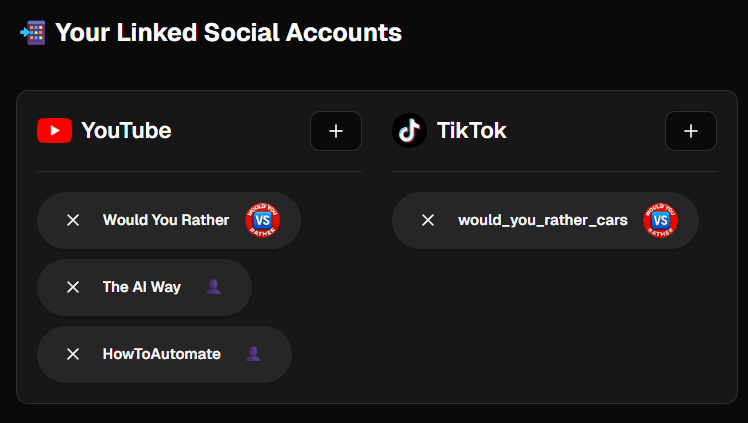
Go to the Auto-Posting page in your dashboard. Make sure you have at least one social media account connected first. If you haven't connected YouTube or TikTok yet, check out our guide on how to connect your social accounts.
Step 2: Choose Your Content Type
Click "Create New Series" and select the type of content you want to automate:
- AI Slideshow Series
- Reddit Stories Series
- Would You Rather Series
Step 3: Select Social Media Accounts
Choose which accounts you want to post to. You can select:
- Multiple YouTube channels
- Multiple TikTok accounts
- Any combination of connected accounts
Step 4: Configure Content Settings
Set up your content preferences for the series:
- Category or topic for content generation
- Video duration and style
- Voice selection
- Any other content-specific settings
Pro Tip: These settings will be used for all videos in the series, but you can always edit individual videos later if needed.
Step 5: Set Your Posting Schedule
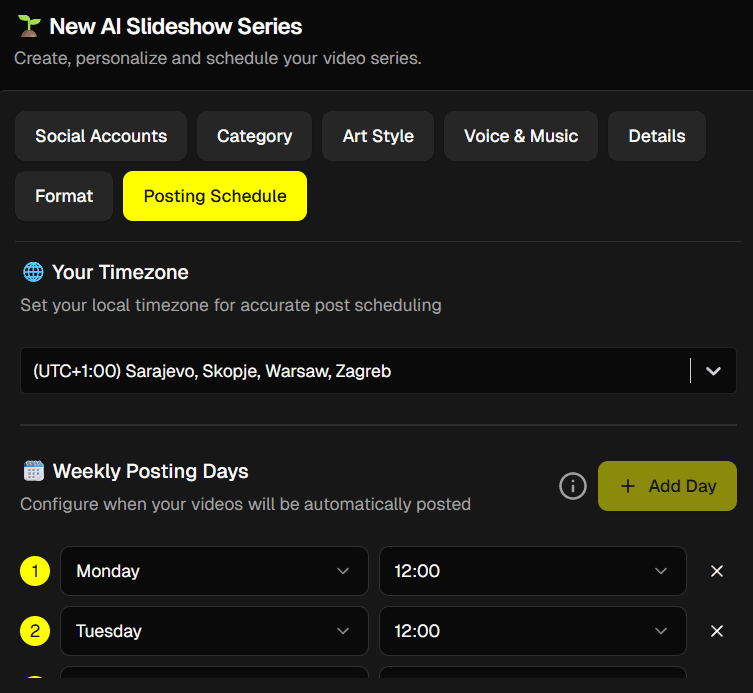
Configure when you want videos to be posted:
- Select days of the week
- Choose posting times for each day
- Set your timezone
- Configure posting frequency
Pro Tip: Posting frequency depends on your subscription tier. Hobby: 3x per week, Pro: 1x per day, Ultimate: 2x per day.
Step 6: Activate Your Series
Review all settings, then click "Save Series" to activate it and create an upcoming post. AutoFeed will start generating and posting videos according to your schedule.
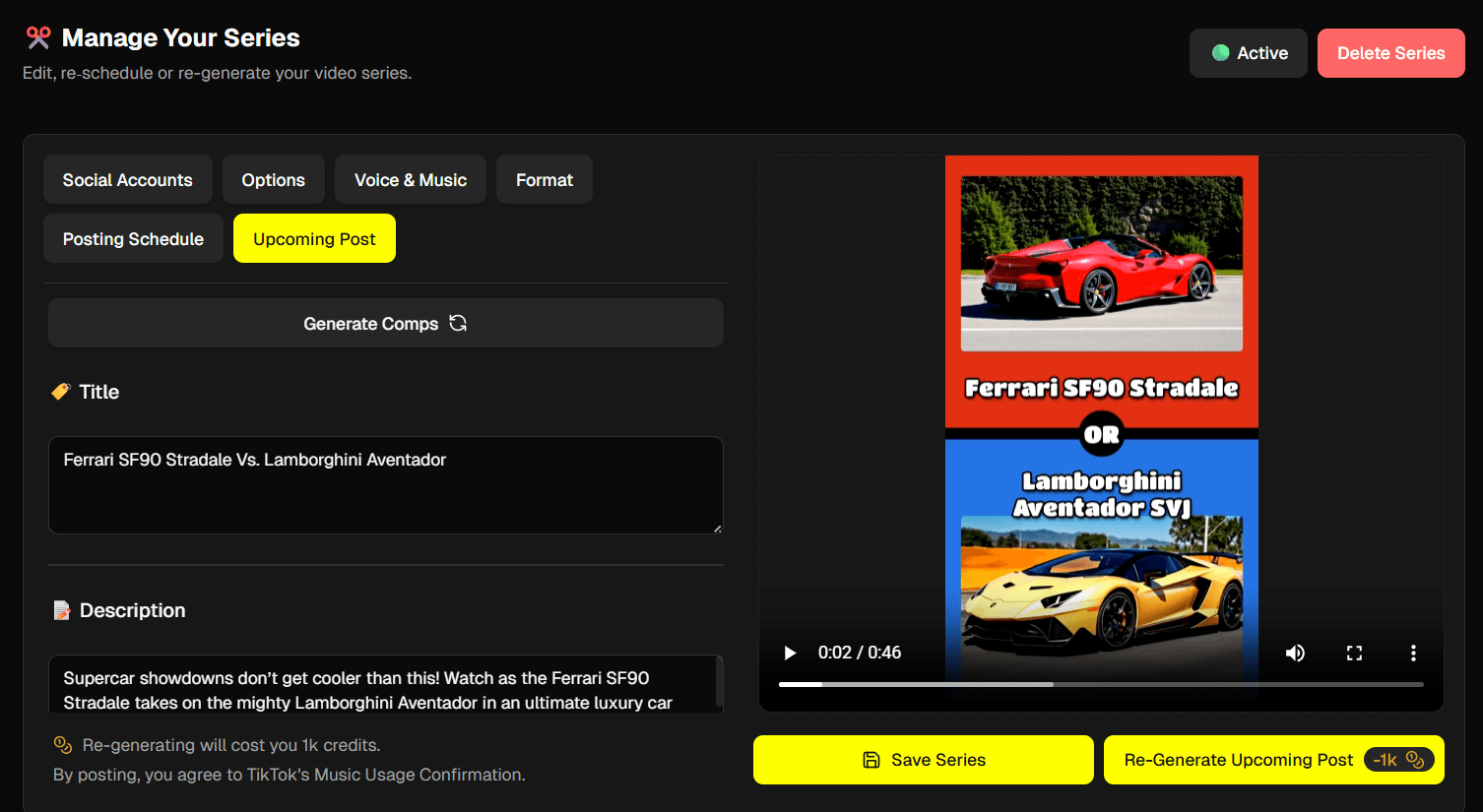
Managing Your Series
Once your series is running, you can manage it easily:
- View Upcoming Posts: See what videos are scheduled to be posted
- Pause/Resume: Temporarily stop a series without deleting it
- Edit Settings: Modify content settings, schedule, or accounts
- View History: See all videos that have been posted from the series
- Delete Series: Remove a series if you no longer need it
Pro Tips for Successful Series
Here are expert tips to get the most from your auto-posting series:
Pro Tip: Start with one series. Don't overwhelm yourself. Start with one series, learn what works, then add more.
Pro Tip: Test different content. Create multiple series with different topics to see what your audience responds to best.
Pro Tip: Optimize posting times. Use analytics to find when your audience is most active, then schedule posts for those times.
Pro Tip: Be patient. Growth takes time. Consistent posting over weeks and months is what builds an audience.
Start Automating Your Content Today
Ready to set up your first auto-posting series? Sign up for AutoFeed.ai and start automating your content creation and posting. Generate faceless videos, schedule them across YouTube and TikTok, and grow your channels - all on autopilot.
Latest from Blog
How to Turn Long YouTube Videos into Viral Clips with AI
Repurpose podcasts, interviews, and long-form videos into viral shorts in minutes

How to Create 'Pick One' Videos That Drive Massive Engagement
The forced-choice format that dominates For You pages on TikTok and Reels

Stop Wasting Your Long-Form Content: A Repurposing Playbook for Creators
Why every creator should build a repurposing pipeline - and how to do it with AI