How to Create AI Slideshow Videos for TikTok and YouTube Shorts
Create stunning AI slideshow videos with professional voiceovers on AutoFeed.ai
What Are AI Slideshow Videos?
AI Slideshow videos combine stunning AI-generated images with professional voiceovers to create engaging, educational, or entertaining content. These videos are perfect for sharing facts, stories, educational content, or any topic that benefits from visual storytelling.
Step 1: Navigate to AI Slideshow Creator
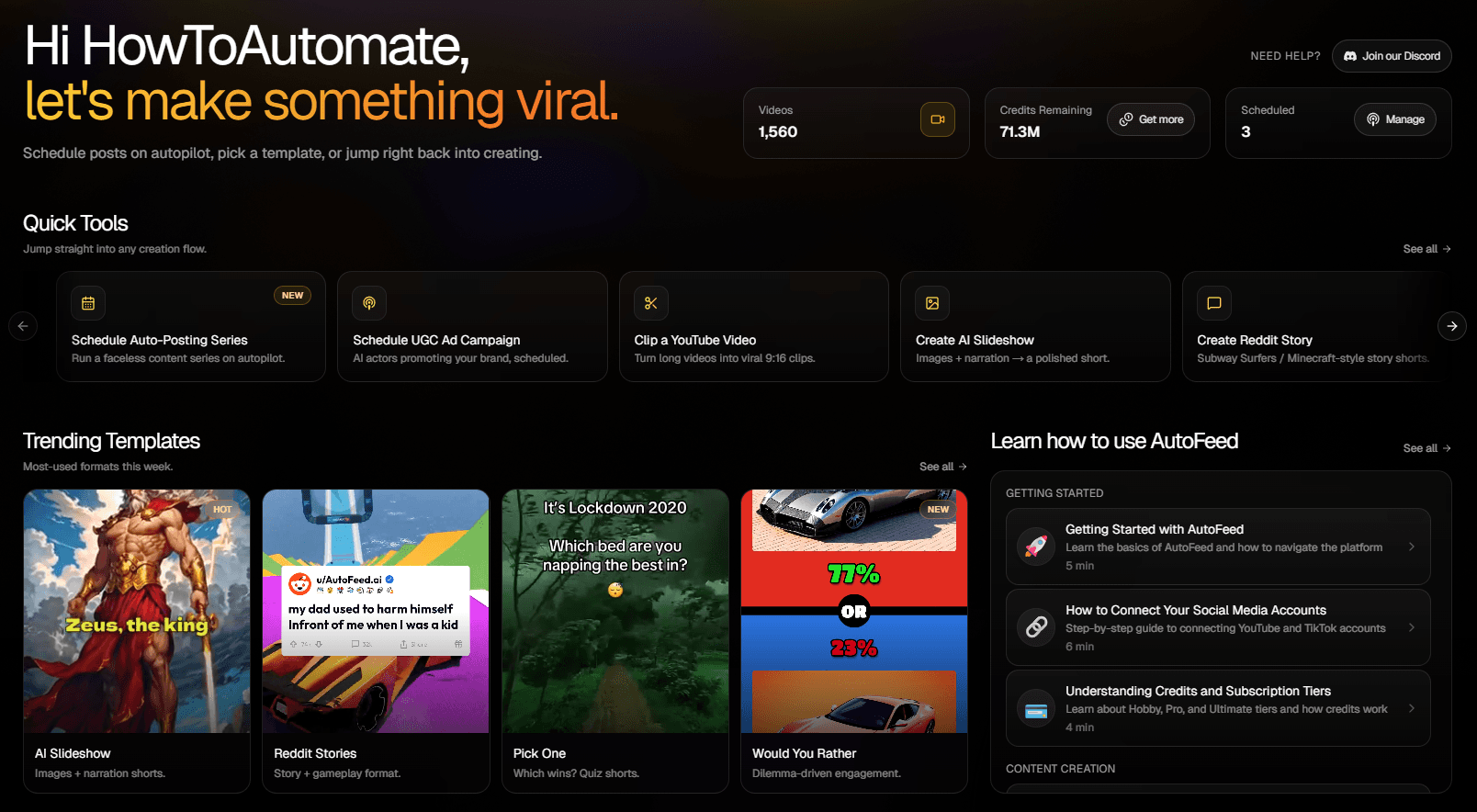
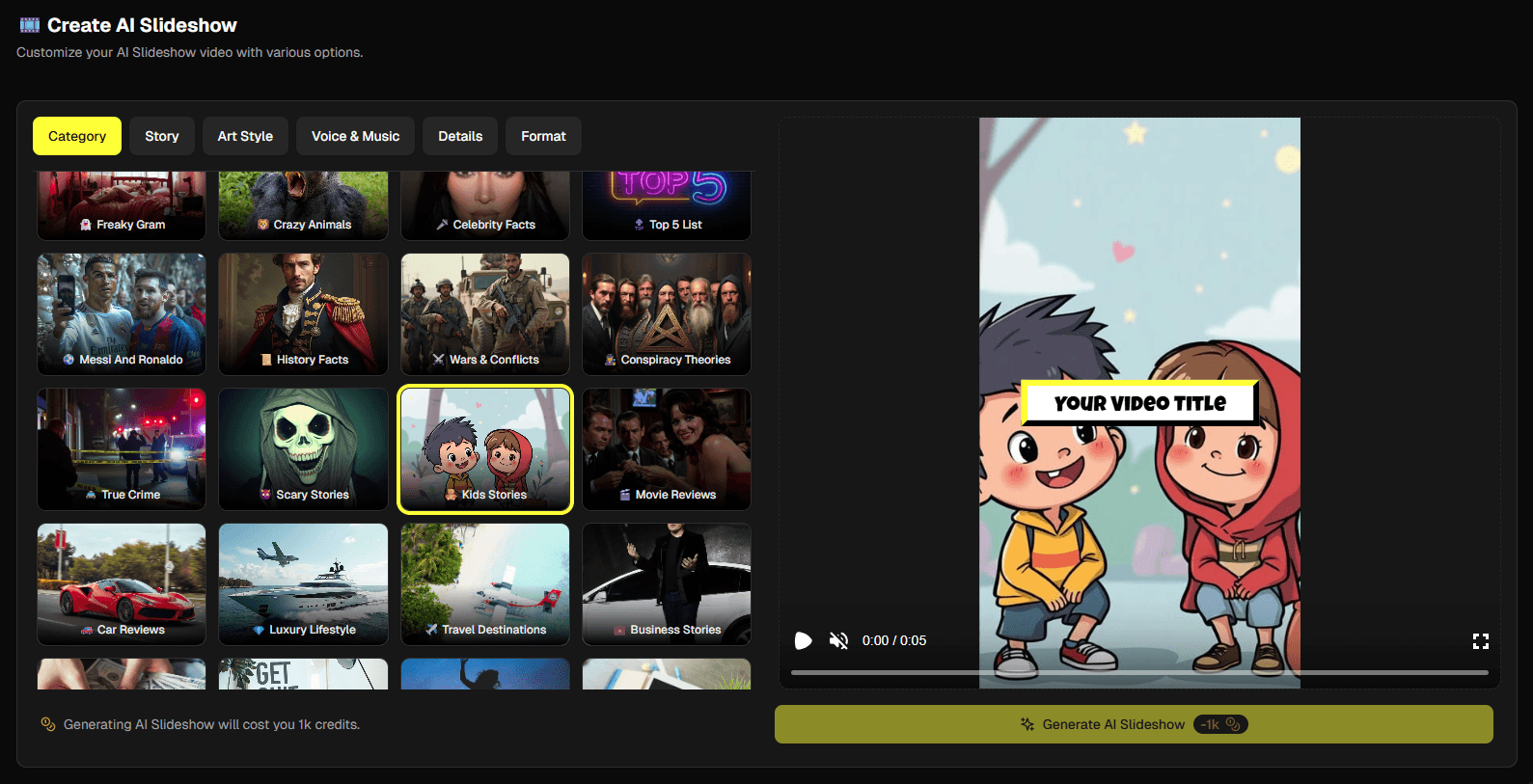
Go to Create → Faceless → AI Slideshow in your dashboard. You'll see the creation interface with tabs at the top: Category, Story, Art Style, Voice & Music, Details, and Format.
Step 2: Category Tab - Choose Your Topic
In the Category tab, you have two options:
- Custom Topic: Type your own story idea in the text area. Be specific - for example, instead of "space," try "interesting facts about black holes" or "how astronauts live on the International Space Station."
- Video Category: Select from trending categories like Educational & Facts, Motivational & Self-Improvement, Entertainment & Stories, Technology & Science, History & Culture, and many more.
Pro Tip: The category helps AutoFeed generate more relevant images and content. Choose the one that best fits your video's theme, or select "Write Your Own Story" for complete creative control.
Step 3: Story Tab - Generate Title, Description, and Script
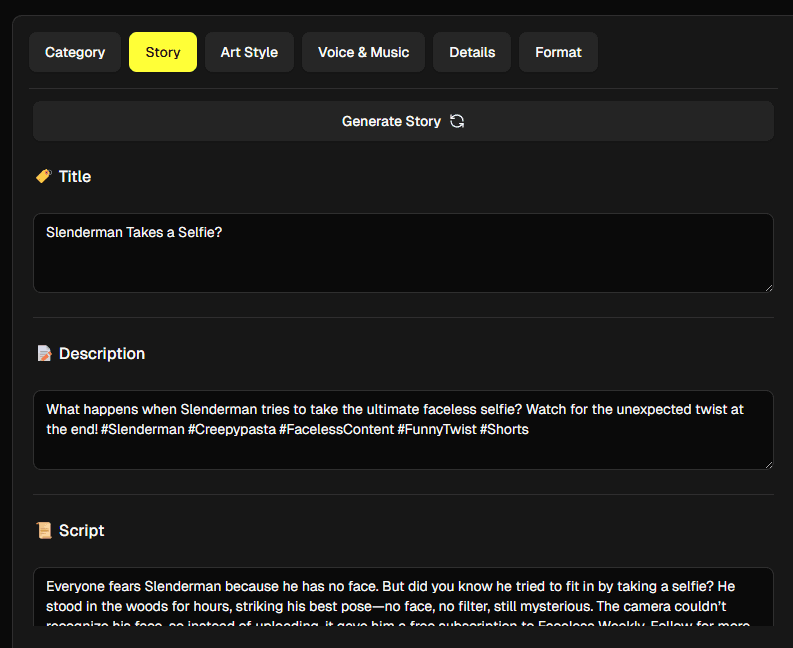
Navigate to the Story tab. Click the "Generate Story" button, and AutoFeed's AI will automatically create:
- Video Title: An engaging, SEO-optimized title perfect for social media
- Description: A compelling description that works well on YouTube and TikTok
- Script: A complete, structured script with sections timed to work perfectly with AI-generated images
After generation, you can edit the title, description, and script directly. Make changes to match your brand voice or add personal touches. You can regenerate the story if you're not satisfied with the first result.
Step 4: Art Style Tab - Choose Visual Style
In the Art Style tab, select the visual style for the AI-generated images. You'll see a grid of style options including realistic photography, artistic illustrations, modern digital art, and various artistic aesthetics.
Click on any style card to select it. This style will be applied to all AI-generated images in your slideshow, ensuring visual consistency throughout your video.
Pro Tip: Choose a style that matches your content's mood. Use realistic photography for educational content, or artistic illustrations for creative storytelling.
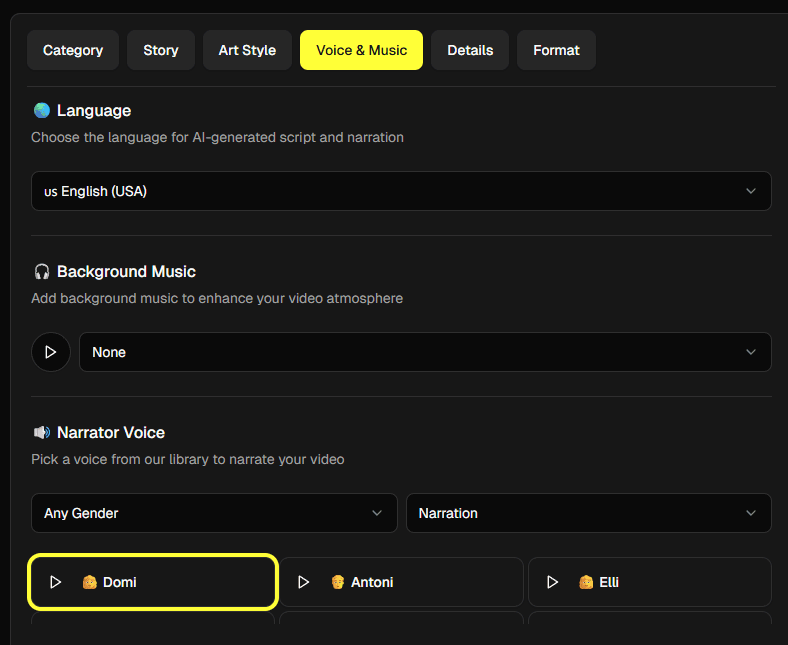
Step 5: Voice & Music Tab - Audio Settings
The Voice & Music tab lets you customize all audio aspects:
- Language: Select the language for your AI-generated script and narration. Choose from multiple languages.
- Background Music: Add background music to enhance your video's atmosphere. Preview tracks before selecting.
- Narrator Voice: Select from professional AI voices. Filter by gender and use case (Narration, Conversational, etc.).
Pro Tip: Match your voice selection to your content tone. Use an energetic voice for fun facts, a calm voice for educational content, and a professional voice for serious topics.
Step 6: Details Tab - Fine-Tune Your Video
The Details tab is where you fine-tune the visual and technical aspects:
- Animated Images: Convert static AI images into animated videos with subtle motion. Uses more credits but creates more dynamic content.
- Camera Shake: Add dynamic camera movement and subtle zoom effects (only available when animated images are disabled).
- Duration: Select video length from 30 seconds to 2 minutes. Shorter videos (30-45 seconds) work best for TikTok, while 45-60 seconds performs well on YouTube Shorts.
- Caption Style: Choose from various animated caption styles that display your script text on screen.
- Particles Effect: Add animated particles overlay like sparkles, stars, or abstract animations.
Pro Tip: Experiment with different combinations. Remember that animated images and certain effects may increase credit costs, so balance visual appeal with your credit budget.
Step 7: Format Tab - Choose Aspect Ratio
Select the video aspect ratio optimized for your target platform:
- 9:16 (Vertical): Perfect for TikTok, YouTube Shorts, and Instagram Reels
- 16:9 (Horizontal): Ideal for YouTube videos
- 1:1 (Square): Great for Instagram posts and Facebook
Pro Tip: If you're posting to multiple platforms, create separate videos with different formats for optimal viewing on each platform.
Step 8: Generate Your AI Slideshow
Once you've configured all tabs, review the credit cost at the bottom. Click "Generate AI Slideshow" and AutoFeed will:
- Generate AI images matching your script and art style
- Create professional voiceover with your selected voice
- Add background music if selected
- Apply caption styles and particle effects
- Render your final video in the selected format
Once complete, your video will be ready for download or direct posting to your connected social media accounts.
Pro Tips for Better AI Slideshows
Pro Tip: Start with a surprising fact or question in the first 3 seconds. "Did you know that honey never spoils?" is more engaging than "Today we're talking about honey."
Pro Tip: Instead of broad topics like "animals," try "unusual animal behaviors" or "animals with superpowers." Specificity leads to more engaging content.
Pro Tip: Make sure your topic has strong visual elements. Topics with clear imagery (like volcanoes, space, animals) work better than abstract concepts.
Best Topics for AI Slideshows
High-Performing Topics: Interesting facts and trivia, historical events and figures, science and nature, technology and innovation, psychology and human behavior, space and astronomy.
Trending Niches: Unsolved mysteries, conspiracy theories (fact-checked), life hacks and tips, motivational quotes, success stories, mind-blowing statistics.
Ready to create AI slideshows? Sign up for AutoFeed.ai and start creating engaging slideshow content in minutes.
Latest from Blog
How to Turn Long YouTube Videos into Viral Clips with AI
Repurpose podcasts, interviews, and long-form videos into viral shorts in minutes
How to Create 'Pick One' Videos That Drive Massive Engagement
The forced-choice format that dominates For You pages on TikTok and Reels

Stop Wasting Your Long-Form Content: A Repurposing Playbook for Creators
Why every creator should build a repurposing pipeline - and how to do it with AI